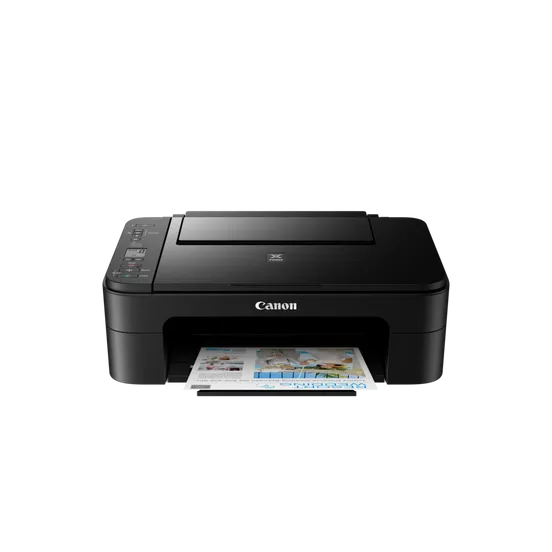
Canon PIXMA TS3340 MFP (Middle East & Africa) Black
The Canon PIXMA TS3340 MFP (BLACK) is an affordable and compact multifunction inkjet printer designed for both home and small office use. It offers a combination of printing, scanning, and copying features, making it ideal for users looking for a simple, cost-effective solution for their everyday printing needs. The printer is known for delivering good print quality and user-friendly functionality in a compact design.
Key Features of Canon PIXMA TS3340 MFP (Black):
Multifunction Capability:
The Canon PIXMA TS3340 is an All-in-One (AiO) printer that supports printing, scanning, and copying functions, making it a versatile option for both personal and office use.
Wireless Printing:
With Wi-Fi connectivity, the TS3340 allows users to print documents directly from their smartphones or tablets via Canon PRINT app, Apple AirPrint, and Google Cloud Print, making it convenient for wireless printing.
Affordable and Compact:
The PIXMA TS3340 is designed to be space-saving and budget-friendly, perfect for users who need a reliable printer without taking up too much space.
Good Print Quality:
The printer uses FINE (Full Photolithographic Inkjet Nozzle Engineering) technology to deliver high-quality prints with sharp text and vibrant colors, ideal for photos and documents.
Simple Control Panel:
The PIXMA TS3340 features an intuitive control panel with basic buttons for easy operation, making it suitable for users with minimal technical expertise.
Copy and Scan Functions:
The flatbed scanner supports high-quality scans of documents and images, and users can also make copies with ease.
Compact Design:
The printer has a slim and compact design, allowing it to fit comfortably in smaller spaces, such as home offices, apartments, or dorm rooms.
Specifications: Canon PIXMA TS3340
Model: Canon PIXMA TS3340 MEA (Black)
Type: Inkjet Multifunction Printer (MFP)
Functions: Print, Scan, Copy
Print Technology: FINE (Full Photolithographic Inkjet Nozzle Engineering) technology
Connectivity:
Wi-Fi (for wireless printing)
USB 2.0
Apple AirPrint
Google Cloud Print
Canon PRINT app
Print Resolution: Up to 4800 x 1200 dpi (dots per inch)
Print Speed:
Black & White: Approx. 7.7 ipm (images per minute)
Color: Approx. 4.0 ipm
Scanner Resolution: Optical: 600 x 1200 dpi
Maximum Copy Size: A4
Display: LED indicators for status
Paper Handling:
Input: 60-sheet rear paper tray
Output: 30-sheet output tray
Paper Sizes Supported:
A4, A5, B5, Letter, Legal, 4×6, 5×7, and envelopes
Operating System Compatibility: Windows, macOS, iOS, Android
Benefits: Canon PIXMA TS3340
Affordable and Budget-Friendly:
The Canon PIXMA TS3340 is an affordable entry-level printer, making it ideal for home use, students, and small offices with limited budgets.
Compact Design:
The printer’s small footprint makes it easy to place on a desk or shelf without occupying much space, which is ideal for smaller spaces like home offices or apartments.
Wireless Convenience:
With built-in Wi-Fi, users can easily print from smartphones and tablets without needing to connect to the printer via cables. This provides flexibility and convenience for users on the go.
Good Print Quality:
The printer delivers sharp text and vibrant colors, making it suitable for a wide range of printing tasks, from documents to photos.
User-Friendly Operation:
The simple control panel with LED indicators allows for easy operation, even for users with minimal technical expertise.
Versatility:
The scanning and copying capabilities, combined with printing, make it a multifunctional device, saving users time and money by combining several essential office functions in one machine.
Energy Efficient:
The printer has an energy-saving feature that helps reduce energy consumption, which is great for users looking to lower their electricity costs.
How to Install the Canon PIXMA TS3340 MFP (Black):
Unbox the Printer:
Remove the printer from its packaging and remove all protective tapes and materials.
Set Up the Printer:
Place the printer in a suitable location, ensuring it is close to a power outlet and the Wi-Fi network.
Install the Ink Cartridges:
Open the printer’s ink cartridge compartment.
Insert the Canon ink cartridges (typically PG-545 for black and CL-546 for color) into their respective slots.
Load Paper:
Load the rear paper tray with the appropriate size of paper (e.g., A4 or Letter size).
Connect to Power:
Plug the printer into a power outlet and turn it on using the power button.
Install Printer Software:
For Windows or macOS:
Download and install the printer software from the Canon website or use the CD that comes with the printer.
Follow the on-screen instructions to complete the installation.
For Wireless Setup:
Use the printer’s control panel to select the Wi-Fi network and enter the network password to connect the printer to your home Wi-Fi network.
Alternatively, use the Canon PRINT app for easier wireless setup on smartphones.
Test Print:
Once the installation is complete, print a test page to ensure the printer is functioning correctly and that the ink cartridges are properly installed.




 HP, Laserjet Printer, Printers




There are no reviews yet.