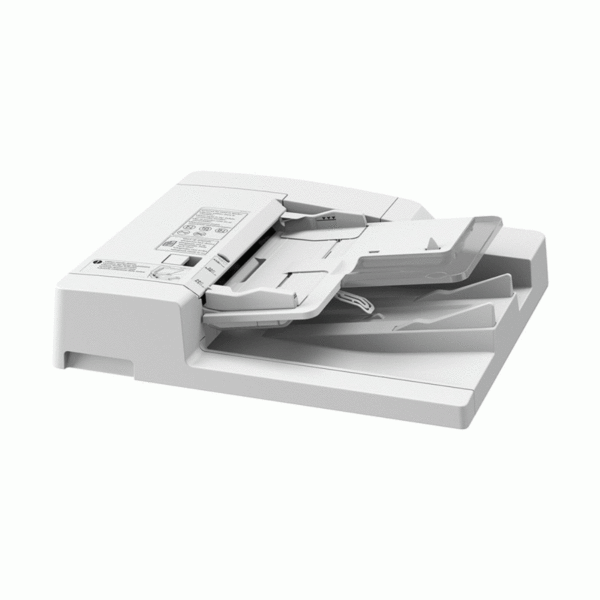
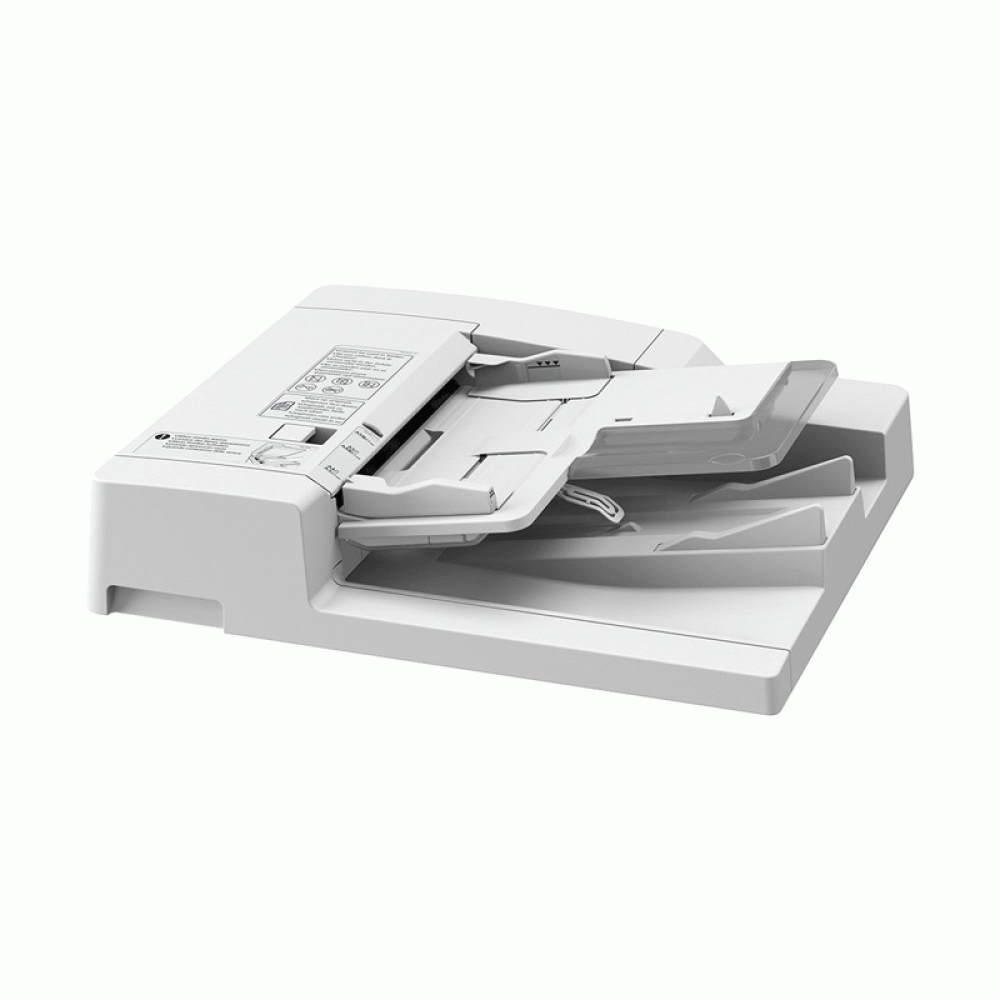
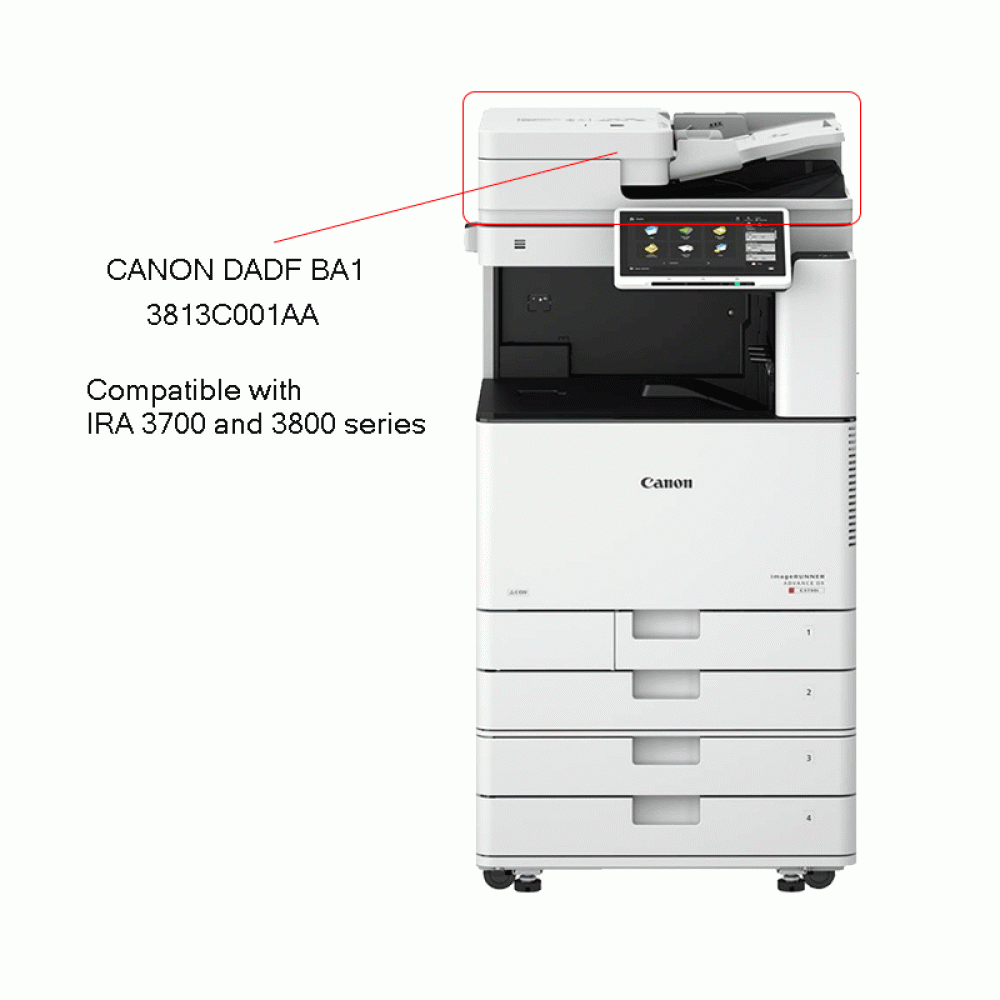
The Canon DADF-BA1 is a Duplex Automatic Document Feeder (DADF) designed for use with certain Canon multifunction printers (MFPs). This accessory enhances the document handling capabilities of compatible printers by providing automatic two-sided scanning and feeding, which increases productivity and efficiency, especially in environments that require frequent scanning of documents.
Key Features of Canon DADF-BA1:
Duplex Scanning:
The DADF-BA1 supports automatic two-sided scanning, allowing both sides of a document to be scanned without the need to manually flip the page. This feature enhances productivity and reduces the time spent scanning large documents.
High Capacity:
The DADF-BA1 offers a high-capacity paper feed, allowing it to handle a large number of sheets at once, making it suitable for high-volume scanning tasks.
Automatic Document Feeding:
It automates the process of feeding documents into the printer or scanner, eliminating the need for manual page-by-page loading. This reduces human error and improves overall workflow.
Improved Workflow Efficiency:
By automating the scanning process and supporting both single- and double-sided documents, the DADF-BA1 significantly increases efficiency in environments that require scanning multiple pages or large document batches.
Compact Design:
The DADF-BA1 is designed to be easily integrated into compatible Canon MFPs, without taking up too much additional space, maintaining a sleek and efficient overall design.
Versatile Document Handling:
It supports a wide range of document sizes and types, ensuring flexibility in various office environments. It can handle standard paper sizes like A4 and letter, as well as smaller or larger documents.
Specifications:
Document Feed Capacity:
Can hold up to 50 sheets of paper in the input tray.
Document Size Compatibility:
Supports standard paper sizes like A4, letter, and others.
Can handle document thicknesses ranging from 52 g/m² to 120 g/m².
Duplex Scanning:
Supports two-sided scanning (duplex), scanning both sides of the paper in a single pass, improving speed and efficiency.
Scanning Speed:
Depending on the specific model of the Canon MFP it’s paired with, the scanning speed can be as fast as 40 pages per minute (ppm) for both simplex and duplex scanning.
Connectivity:
The DADF-BA1 is integrated with compatible Canon MFPs and does not require additional external connectivity. It works seamlessly with the printer’s onboard control system.
Benefits:
Enhanced Productivity:
With automatic duplex scanning and a high-capacity document feeder, the DADF-BA1 enables faster and more efficient scanning, making it ideal for high-volume office environments.
Cost and Time Saving:
The automatic feeding of multiple sheets at once, along with duplex functionality, saves both time and labor costs by reducing manual intervention and speeding up the process of scanning double-sided documents.
Improved Document Handling:
The DADF-BA1 can handle a variety of paper types and sizes, allowing it to handle a wide range of documents with ease, from simple forms to more complex and thicker documents.
Space Efficiency:
Despite its high capacity and functionality, the DADF-BA1 has a compact design, ensuring that it does not take up unnecessary space in the office.
Reliability:
Canon products are known for their durability and reliable performance, and the DADF-BA1 follows this standard, providing long-term, dependable service in demanding work environments.
How to Install Canon DADF-BA1:
Ensure Printer Compatibility:
Before installation, verify that your Canon printer or MFP is compatible with the Canon DADF-BA1.
Turn Off the Printer:
Power down the printer or MFP and unplug it to ensure safety during installation.
Attach the DADF:
The DADF-BA1 is usually attached to the top or side of the Canon MFP. Align the connector ports of the DADF with the designated slot on the printer.
Secure the DADF:
Once aligned, firmly attach the DADF-BA1 to the printer, ensuring it is properly secured.
Reconnect and Power On:
Plug the printer back in and turn it on. The printer should automatically recognize the new accessory.
Configure Settings:
Depending on the printer model, you may need to configure the DADF-BA1 settings in the printer’s menu or control panel. This step ensures proper functionality for duplex scanning and document feeding.
Test:
Run a test scan to ensure the DADF-BA1 is functioning correctly and that the duplex scanning and document feeding are working as expected.






There are no reviews yet.