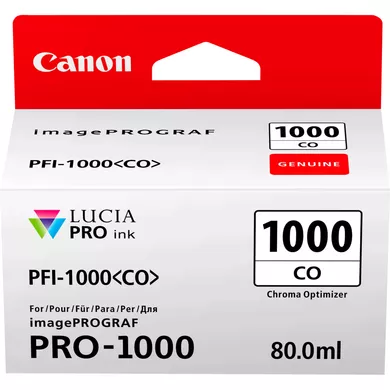
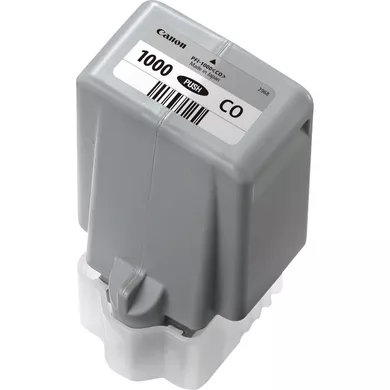
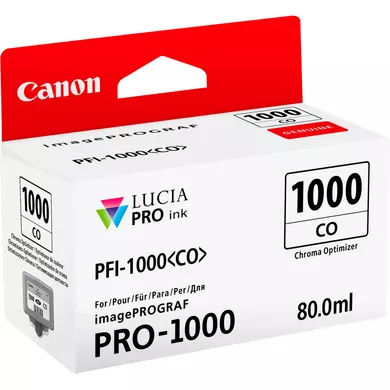
The INK CARTRIDGE CANON PFI-1000 CO ink cartridge is designed for use with Canon imagePROGRAF PRO series printers. The “CO” in the model number indicates that this cartridge contains Chroma Optimizer ink, which is specifically used to enhance the quality of prints by improving the glossiness, depth, and color consistency of photo prints.
Chroma Optimizer Ink: The PFI-1000 CO is a special ink cartridge that contains Chroma Optimizer, a clear ink that enhances the glossiness and depth of photo prints. It helps to smooth out the surface of prints, ensuring that they look more vibrant and detailed.
Gloss Enhancement: Chroma Optimizer improves the uniformity of glossiness across printed images, especially when printing on glossy or semi-gloss paper. It minimizes the graininess that can appear in some prints and ensures a smooth, consistent surface.
Color Consistency: This cartridge helps improve color consistency by providing better coverage over inkjet droplets. It prevents over-saturation of certain colors and ensures more uniform colors across the print.
Dye-Based and Transparent Ink: The Chroma Optimizer ink is transparent and does not affect the actual colors of the print. It is designed to enhance the printed image without altering the colors produced by other cartridges.
OEM Quality: As part of the Canon PFI-1000 series, this cartridge is an OEM product, designed to be fully compatible with Canon imagePROGRAF PRO-1000, PRO-2000, PRO-4000, and PRO-4000S printers, ensuring optimal performance and reliability.
Cartridge Capacity: Typically available in 80ml, 130ml, or 300ml capacities, depending on the printer and needs.
Compatible Printers: Canon imagePROGRAF PRO-1000, PRO-2000, PRO-4000, PRO-4000S series
Dimensions: Varies depending on the capacity, but generally around 5 x 1.5 x 3 inches for the 80ml version.
Yield: The yield is similar to other PFI-1000 cartridges, but it can depend on the specific printer model and print settings. Generally, Chroma Optimizer cartridges are designed for high-volume printing in professional settings.
Benefits: INK CARTRIDGE CANON PFI-1000 CO
Enhanced Gloss and Finish: The Chroma Optimizer enhances the finish of your prints, particularly on glossy or semi-gloss photo papers, by providing a smooth, uniform gloss.
Vivid Prints: By helping to optimize gloss and minimize the appearance of ink droplets, the PFI-1000 CO ensures prints look vibrant, with deep contrast and clear details, ideal for high-end photo and fine art printing.
Improved Durability: Chroma Optimizer helps protect the printed image from damage, enhancing the longevity of the print by preventing fading or discoloration over time.
Cost-Efficiency: While primarily used for glossy media, the Chroma Optimizer ink allows for high-quality results without the need for multiple specialized gloss enhancement cartridges, making it a cost-efficient option.
Seamless Integration: As an original Canon ink cartridge, the PFI-1000 CO is designed for seamless integration with Canon imagePROGRAF PRO printers, minimizing the risk of compatibility issues and maximizing performance.
How to Install INK CARTRIDGE CANON PFI-1000 CO
Turn Off the Printer: Ensure that your printer is powered off before installing or replacing any ink cartridges for safety.
Open the Ink Cartridge Compartment: Open the front cover or ink compartment door on your Canon imagePROGRAF printer to access the cartridge slots.
Remove the Old Cartridge (if applicable): If you’re replacing an existing Chroma Optimizer cartridge, press the release button or lever to remove it from its slot.
Prepare the New Cartridge: Remove the new Canon PFI-1000 CO Chroma Optimizer cartridge from its packaging. Be cautious not to touch the ink spout to avoid contamination or ink leakage.
Install the New Cartridge: Insert the new cartridge into the designated slot for the Chroma Optimizer ink. Ensure that it is securely placed and clicks into position.
Close the Ink Compartment: Once the cartridge is properly installed, close the ink compartment cover.
Power On the Printer: Turn the printer back on. The printer may automatically begin priming the cartridge and checking ink levels.
Run a Test Print: After installation, run a test print to ensure that the Chroma Optimizer ink is being used correctly and that the gloss-enhancing features are functioning as expected.


 canon, Canon Printers, Inkjet, Inkjet Printer, Printers


There are no reviews yet.