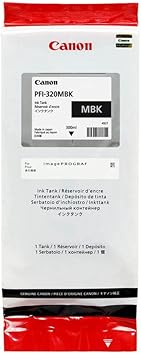
The Canon PFI-320 Matte Black is a toner cartridge designed for use with Canon’s large-format imagePROGRAF PRO series of printers, including models like the PRO-2000, PRO-4000, and other professional-grade printers in the Canon imagePROGRAFlineup. The PFI-320 Matte Black ink is especially important for printing fine art, high-quality photography, and other applications that require deep black tones and exceptional image clarity.
Key Features of Canon PFI-320 Matte Black:
Ink Type: The PFI-320 Matte Black uses pigment-based ink, which is ideal for producing sharp, detailed prints with rich black tones. Pigment inks provide better longevity and resistance to fading compared to dye-based inks, ensuring the prints remain crisp and vibrant over time.
Matte Finish: Specifically designed for matte paper types, the PFI-320 Matte Black ink offers excellent color density and smooth transitions on matte surfaces. This is particularly important for print jobs like fine art reproduction, where a smooth and deep black is required without any gloss or shine.
High-Quality Print Output: This ink cartridge helps produce prints with rich, deep blacks and exceptional contrast, making it suitable for professional photographers, graphic artists, and print shops.
Wide Color Gamut: The Matte Black ink contributes to a wider color gamut, which means prints have a fuller range of colors, especially important for high-quality color and monochrome prints.
Specifications:
Ink Color: Matte Black
Ink Type: Pigment-based ink
Cartridge Capacity: Typically 160 ml (capacity can vary by specific printer or region)
Compatibility: Designed for use with Canon’s imagePROGRAF PRO series printers, such as the PRO-2000, PRO-4000, PRO-6000, etc.
Model Number: PFI-320 MBK
Technology: Utilizes Canon’s FINE (Full-photolithography Inkjet Nozzle Engineering) technology, ensuring high-precision ink drops and sharp details in prints.
Weight:
The Canon PFI-320 Matte Black ink cartridge typically weighs around 0.3 to 0.4 kg (approximately 300-400 grams), though the weight may vary slightly based on packaging and distribution.
Benefits of Canon PFI-320 Matte Black:
Enhanced Black Tones: The pigment-based matte black ink provides deep, rich black tones with superior density, ideal for professional-grade prints.
Matte Finish for No Gloss: Perfect for matte media, the ink ensures no unwanted gloss or shine, making it ideal for fine art prints, photography, and other matte finish applications.
Long-Lasting Prints: Pigment ink ensures that prints remain sharp and fade-resistant for long periods, even when exposed to light, making it perfect for archival-quality prints.
High-Quality Results: The PFI-320 Matte Black ink delivers consistently accurate and high-quality output, ensuring professional results for each print job.
Cost-Effective: With its high capacity and long-lasting print yield, the PFI-320 ink cartridge is cost-effective for high-volume printing environments, particularly in the production of large-format prints.
How to Install the Canon PFI-320 Matte Black Ink Cartridge:
Turn Off the Printer: Always begin by turning off your Canon printer to ensure safety and to prevent any potential errors during installation.
Open the Ink Compartment: Open the ink compartment of your printer. This is usually located on the side of the printer and provides access to the ink slots.
Remove the Old Cartridge (if replacing): If you are replacing an empty or old ink cartridge, gently remove it from its slot by pulling it out.
Unbox the New Cartridge: Take the Canon PFI-320 Matte Black cartridge out of its packaging. Remove any protective seals or covers from the cartridge.
Insert the New Cartridge: Insert the new Matte Black cartridge into the corresponding slot in your printer. The slot will typically be labeled with the ink color (MBK for Matte Black). Ensure the cartridge is properly seated in place.
Close the Ink Compartment: After inserting the cartridge, close the ink compartment to secure the cartridge.
Turn On the Printer: Power on the printer. The printer should automatically recognize the new cartridge and begin the initialization process, which might take a few moments.
Check Ink Levels: Verify that the printer recognizes the new cartridge by checking the ink levels either on the printer’s display screen or through the printer’s software.




There are no reviews yet.