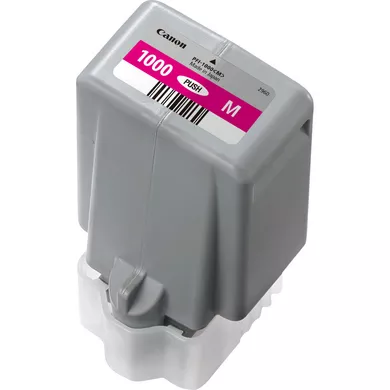
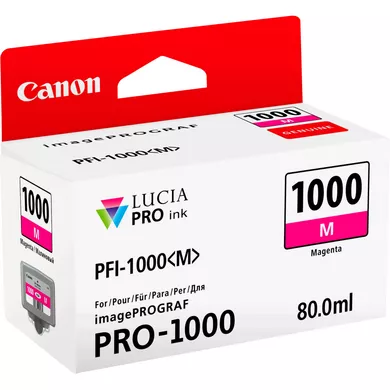
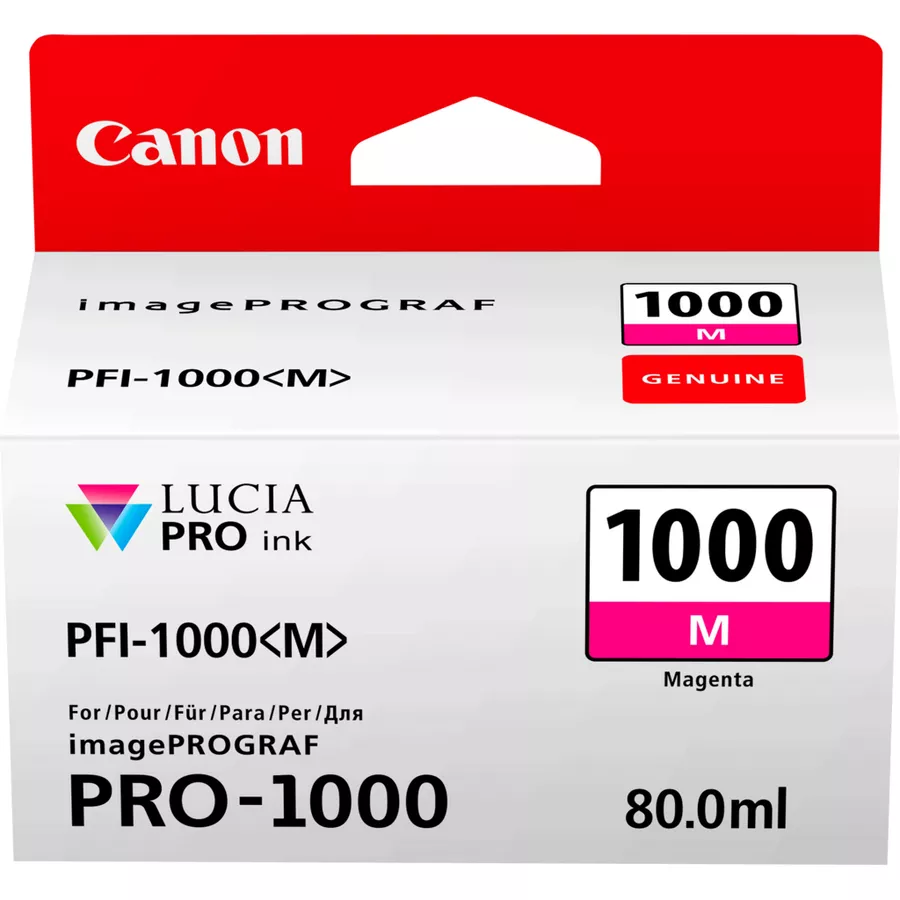
The INK CARTRIDGE CANON PFI-1000 M is a magenta ink cartridge designed for the Canon imagePROGRAF PRO-1000 printer and other compatible Canon imagePROGRAF printers. It is part of the Canon LUCIA PRO ink system, which is specifically engineered to provide high-quality color and photographic prints.
Accurate Magenta Tones: Provides rich and vibrant magenta color for professional prints.
Long-Lasting Prints: Prints are resistant to fading, making them suitable for high-quality, long-lasting artwork and photography.
High Yield: The 80mL capacity allows for high-volume printing with fewer cartridge changes, ideal for professionals.
Consistent Performance: Works seamlessly with Canon printers to deliver consistent results, whether for portrait, landscape, or fine art prints.
Wide Gamut and Precision: Expands the printer’s color range, allowing for more nuanced and detailed prints, especially in color-intensive images.
How To Install
1. Turn On the Printer
Ensure your Canon imagePROGRAF PRO-1000 printer is powered on and initialized. Wait for the printer to be ready for cartridge installation.
2. Open the Ink Cartridge Compartment
Locate the ink cartridge compartment on the front of your printer.
Open the compartment door to access the ink cartridge slots. The slots should be clearly labeled for each ink color.
3. Remove the Old Cartridge (if applicable)
If you’re replacing an old magenta cartridge, press the small tab or lever on the existing cartridge and gently remove it from the slot.
Discard or recycle the old cartridge properly.
4. Unpack the New Canon PFI-1000 M Magenta Ink Cartridge
Remove the Canon PFI-1000 M magenta ink cartridge from its packaging.
Remove the protective tape from the nozzle area. This tape is there to prevent leakage, so ensure you remove it fully before installing.
5. Insert the New Cartridge
Align the cartridge with the magenta slot in the printer. The slots are labeled with corresponding colors (Magenta is typically marked with “M”).
Insert the cartridge into the slot and gently push it into place until you hear a click, which confirms that the cartridge is securely installed.
6. Close the Ink Compartment
After the cartridge is in place, close the ink compartment door.
The printer will recognize the new cartridge and may begin a brief initialization process to prepare it for use.
7. Wait for Printer to Initialize
The printer will likely perform an automatic ink initialization process, which may take a few minutes. During this time, the printer will check and prepare the new cartridge.
Wait for the process to complete before starting to print.
8. Print a Test Page (Optional)
Once the installation and initialization are complete, it’s a good idea to print a test page or a sample photo to confirm that the cartridge is installed properly and the printer is functioning correctly.





There are no reviews yet.