

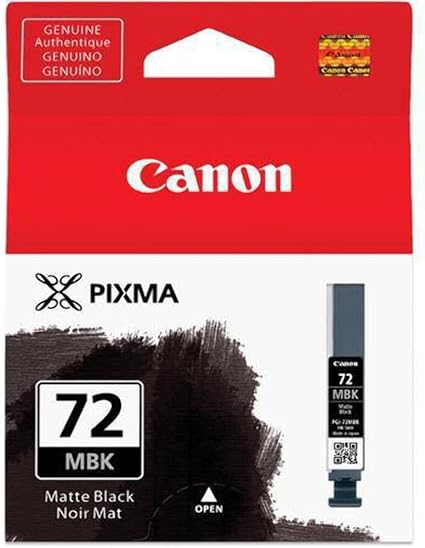
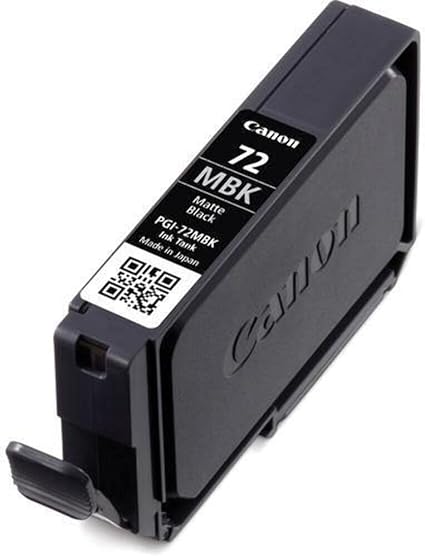
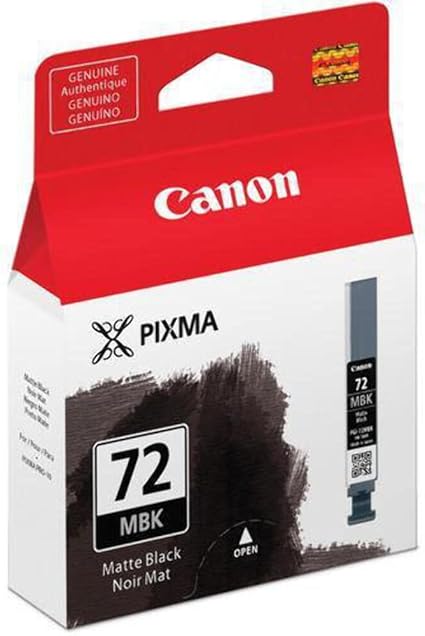
Canon PGI-72 MBK Matte Black Ink Tank | HIGH QUALITY | EFFICIENT | COMPACT
$13.75 $20.00
Canon PGI-72 MBK Matte Black Ink Tank
The Canon PGI-72 MBK Matte Black Ink Tank is a high-quality ink cartridge designed specifically for use with certain Canon PIXMA printers, particularly in professional photo printing environments. The PGI-72 Matte Black ink tank is known for its ability to produce rich, deep black prints on matte photo paper, making it an excellent choice for photographers and creative professionals who demand the highest print quality.
Key Features of Canon PGI-72 MBK Matte Black Ink Tank:
- Rich Matte Black Prints:
- The PGI-72 MBK Matte Black Ink produces deep, rich blacks specifically for printing on matte photo papers. It offers superior contrast and depth, making it perfect for professional photo printing and artistic projects.
- Color Fidelity:
- Designed for photo-quality printing, the Matte Black ink ensures accurate color reproduction, providing stunning photo prints with excellent tonal detail and clarity.
- Enhanced Durability:
- The ink provides long-lasting results, making prints resistant to fading over time, especially when printed on high-quality matte photo paper. It helps preserve the vibrancy of prints for archival purposes.
- Precision and Detail:
- The Canon PGI-72 MBK ink is engineered for precision printing with fine detail and smooth gradation in black areas, ensuring professional results with every print.
- Advanced Ink Technology:
- Canon’s FINE (Full Photolithographic Inkjet Nozzle Engineering) technology ensures that each ink drop is applied with precision, providing smooth gradients and sharp, clean text and images.
- High-Quality Matte Prints:
- This ink is specifically designed for matte photo paper, providing smooth, non-reflective prints ideal for certain artistic and photographic applications.
Specifications of Canon PGI-72 MBK Matte Black Ink Tank:
- Cartridge Type: Ink tank
- Color: Matte Black
- Compatibility:
- Compatible with certain Canon PIXMA PRO series printers, including the PIXMA PRO-100 and PIXMA PRO-10 models.
- It is designed to work specifically with Canon’s LUCIA and LUCIA PRO ink systems to create professional-grade prints.
- Ink Type: Pigment-based ink (matte black)
- Ink Capacity: Approximately 14 ml of ink
- Yield:
- The exact yield can vary depending on the type of media used and the printing conditions. For Canon PIXMA PRO-10, the PGI-72 MBK ink tank typically yields about 350-500 prints, based on standard 5% page coverage.
- Dimensions:
- Width: Approx. 1.8 inches (45.7 mm)
- Depth: Approx. 3.5 inches (88.9 mm)
- Height: Approx. 1.2 inches (30.5 mm)
- Weight: Approx. 0.03 kg (0.07 lbs)
Benefits of Canon PGI-72 MBK Matte Black Ink Tank:
- Superior Black Prints:
- Produces rich, matte blacks that enhance the visual impact of prints on matte paper, providing exceptional contrast and depth for professional photo printing.
- Long-lasting Results:
- The pigment-based ink formula offers archival-quality prints, helping to ensure that your prints last for years without fading.
- Precision Printing:
- Canon’s FINE technology ensures that each ink drop is applied with precision, resulting in smooth, consistent output that enhances the detail and sharpness of your photos.
- High-Quality Photo Output:
- This ink is designed to provide the highest quality output on matte photo paper, delivering prints with excellent tonal gradation and no gloss or sheen, perfect for fine art prints and professional photography.
- Easy to Install and Replace:
- The Canon PGI-72 MBK ink tank is designed for easy installation and replacement in compatible printers, ensuring minimal downtime during the ink cartridge swap.
How to Install Canon PGI-72 MBK Matte Black Ink Tank:
- Turn off the Printer:
- Make sure the printer is powered off before replacing the ink tank.
- Open the Printer’s Ink Cartridge Compartment:
- Open the printer’s front cover or ink compartment to access the ink tank slots.
- Remove the Old Ink Cartridge:
- Gently remove the old ink tank (if applicable), pressing the release button or lever to unlock it, and carefully pull it out.
- Unbox the New Ink Tank:
- Remove the Canon PGI-72 MBK Matte Black Ink Tank from its packaging. Be careful not to touch the ink nozzles or the contacts to avoid contamination.
- Install the New Ink Tank:
- Insert the PGI-72 MBK ink tank into the appropriate slot, aligning it with the marked positions. Push it down gently until it clicks into place.
- Close the Printer:
- Close the printer’s ink compartment and turn the printer back on. The printer will automatically detect the new ink tank.
- Print a Test Page:
- Print a test page to ensure the ink tank is properly installed and that the matte black ink is printing correctly.
Conclusion:
The Canon PGI-72 MBK Matte Black Ink Tank is ideal for professional photographers, artists, and creatives who need high-quality black-and-white prints on matte photo paper. It offers rich matte blacks, excellent color accuracy, and long-lasting durability, making it perfect for archival prints and fine art projects. With Canon’s FINE technology ensuring precision printing, the PGI-72 MBK Matte Black Ink Tank is a vital component for producing stunning, high-quality prints that last for years.
| Weight | 0.03 kg |
|---|
Based on 0 reviews
Be the first to review “Canon PGI-72 MBK Matte Black Ink Tank | HIGH QUALITY | EFFICIENT | COMPACT”
Related products
-
canon, Canon Printers, Inkjet, Inkjet Printer, Printers
Canon PIXMA G3430 All-in-One Multi-function Printer
-22% canon, Canon Printers, Inkjet, Inkjet Printer, Printers
Canon PIXMA G3430 All-in-One Multi-function Printer
- High quality printing
- Print, scan and copy with a single device
- Large-capacity rear tray for volume printing
- Connect wirelessly to your computer or smart device
- Mac, Windows and Chrome
SKU: n/a


There are no reviews yet.