Pigment-Based Ink: The PFI-1000 PGY uses pigment-based ink, which is more durable than dye-based ink. It provides better water and smudge resistance, ensuring long-lasting prints.
Photo Gray: The Photo Gray ink cartridge is used to create smoother tonal transitions in grayscale images, which is especially important for fine art and black-and-white photo prints. It helps provide more detail in shadows and highlights, improving print quality.
Improved Tonal Range: The Photo Gray ink helps produce more accurate gradients and smoother transitions in monochrome images, making it ideal for photographers and artists working with high-quality grayscale prints.
Archival-Quality Prints: Due to the pigment-based nature of the ink, prints are more resistant to fading and environmental damage, making them more durable and suitable for archival-quality work.
Easy Installation: The ink cartridge is designed for easy and straightforward installation, ensuring minimal downtime for professionals who need to keep their printing workflow smooth.
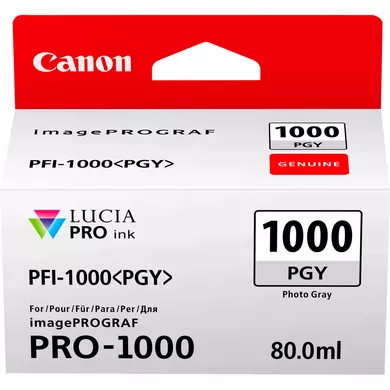
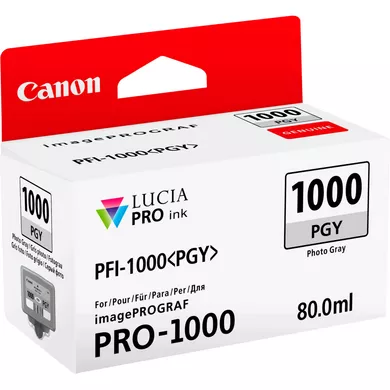
Specifications of INK CARTRIDGE CANON PFI-1000 PGY
Ink Type: Pigment-based ink
Color: Photo Gray
Cartridge Capacity: 80 ml
Ink Formulation: Pigment ink
Purpose: Specifically designed for professional photo and fine art printing, the Photo Gray ink helps achieve smoother gradations and improved tonal range in black-and-white and grayscale prints.
Benefits: INK CARTRIDGE CANON PFI-1000 PGY
Enhanced Grayscale and Black-and-White Prints: The Photo Gray ink allows for more detailed, smooth, and natural tonal transitions, which improves the quality of black-and-white and grayscale prints.
Durability: Pigment ink is more resistant to fading and water damage compared to dye-based ink. This makes prints more durable and resistant to environmental exposure.
Precision and Detail: For fine art printing and professional photography, the Photo Gray ink delivers finer detail and a wider tonal range, providing more accurate and subtle results in both shadows and highlights.
Ideal for Archival Printing: With its superior resistance to fading, this ink is perfect for creating high-quality, long-lasting prints for exhibitions, galleries, or personal collections.
Versatile Printing: While it’s designed for grayscale work, the Photo Gray ink can be used in conjunction with other color cartridges in the imagePROGRAF PRO printers to create high-quality color prints with accurate tonal range.
How to Install INK CARTRIDGE CANON PFI-1000 PGY:
Prepare the Cartridge:
Unbox the Canon PFI-1000 PGY (Photo Gray) ink cartridge carefully.
Remove any protective seals or plastic wrapping from the cartridge.
Turn on the Printer:
Ensure the printer is turned on and the ink compartment is accessible. If the compartment is not open, use the printer’s control panel to open it.
Open the Ink Compartment:
Open the printer’s ink compartment. On Canon imagePROGRAF printers, this is typically located on the front or side.
Remove the Old Ink Cartridge (if replacing):
If you are replacing an old ink cartridge, press the release button or lever near the cartridge slot to eject the old cartridge.
Carefully remove the old cartridge and dispose of it according to your local regulations.
Install the New PFI-1000 PGY Cartridge:
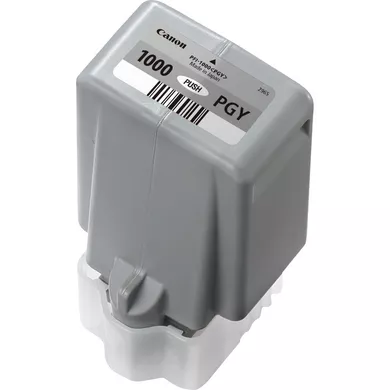
Take the PFI-1000 PGY (Photo Gray) ink cartridge and locate the slot specifically marked for Photo Gray.
Insert the cartridge into the slot, aligning it with the connector and ensuring it fits securely.
Press gently until the cartridge clicks into place.
Close the Ink Compartment:
Once the cartridge is securely installed, close the ink compartment cover.
Prime and Initialize the Cartridge:
The printer may prompt you to confirm the installation of the new cartridge. Follow the on-screen instructions to confirm.
The printer will perform an automatic priming process to ensure the ink is flowing correctly.




There are no reviews yet.